Finding sounds
Listen first
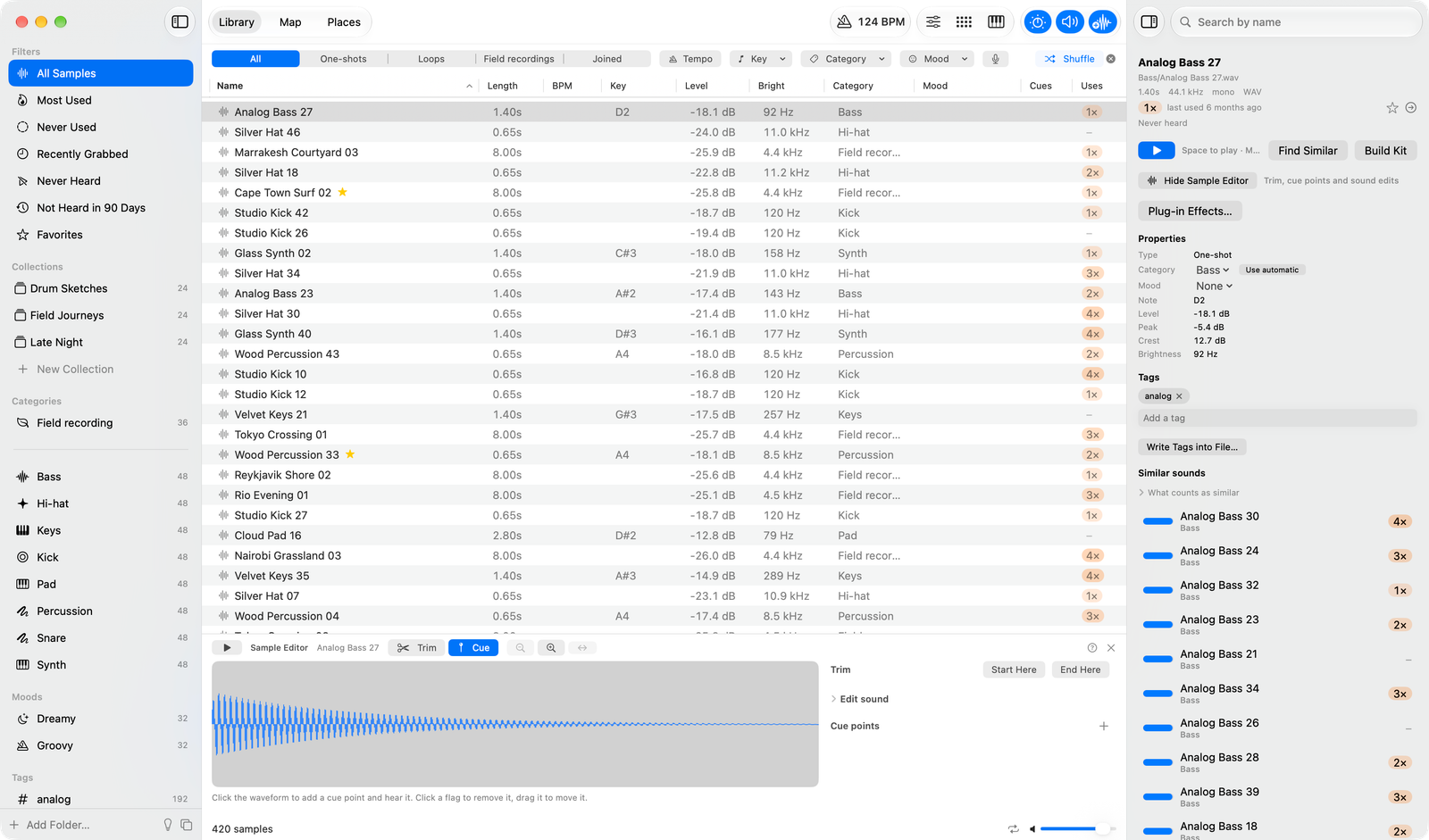
Select a row, or press Space, to hear it. To play from a spot, open the sample editor (⌥⌘S) and click its waveform. Drag any sound, from the list, a map dot, the sample editor's waveform or a similar-sounds list, straight into Ableton or any other music app. Previews can be level-matched, so quiet and loud samples play at a similar volume, and the volume slider in the status bar sets the level of everything the app plays.
Similar sounds
Select a sample and the list shows the ten closest-sounding ones: a hi-hat finds other hi-hats. Drop any audio file on the window to find library sounds like it.
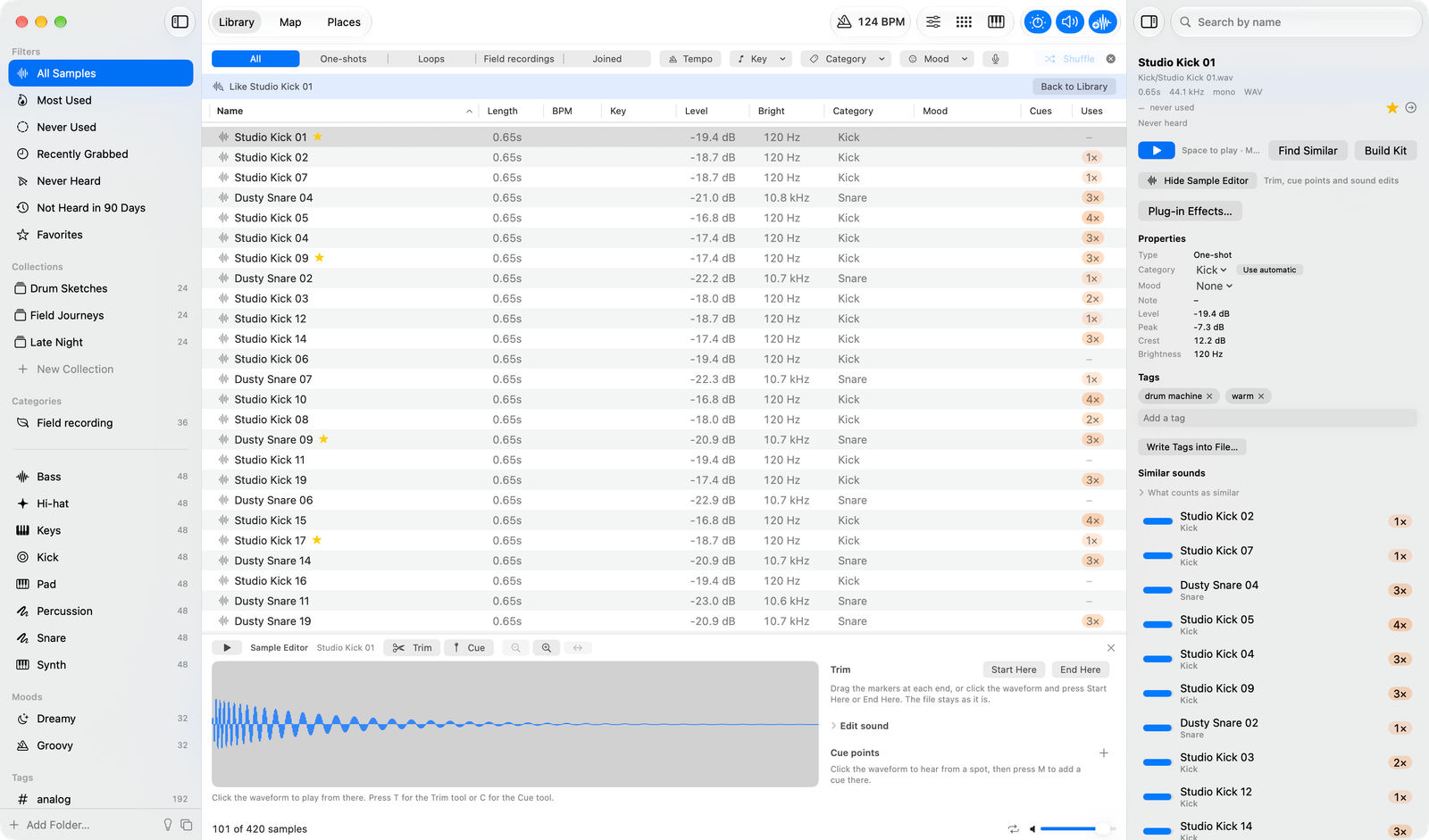
The sliders under What counts as similar weigh the overall sound against brightness, pitch (the same note), level and punch, and length. The list and the map follow them.
Like this, but…
Whenever the list shows sounds like something, a box under the filters takes words that adjust the search: darker, no reverb, more punch. Separate phrases with commas. A phrase that starts with no, not, less or without is ruled out. The + menu adds ready-made words. Words only re-rank the sounds near the original, so they refine what you found rather than pulling in unrelated sounds. Back to Library leaves the like search and keeps your filters. A like search and typed words replace each other: starting one clears the other, so two searches never rank at once.
Search by humming
The microphone button above the list and map listens for up to 10 seconds and finds sounds like what it heard. Beatbox a kick, tap a desk, hum a bass line. The recording is used for that one search and deleted; nothing is kept or sent. macOS asks for microphone permission the first time.
The map
Every sample is a dot, laid out by similarity and colored by group. Groups are named after what is in them, such as "Snare · Bright" or "Hi-hat & Cymbal"; hover a legend row for what it holds. Hover a dot to hear it, click to select it, drag it into your music app. A dot under the pointer swells and wobbles from the side the pointer came from; Reduce Motion turns the wobble off. Drag or scroll to move around, pinch or use the mouse wheel to zoom, and double-click empty space to see everything again.
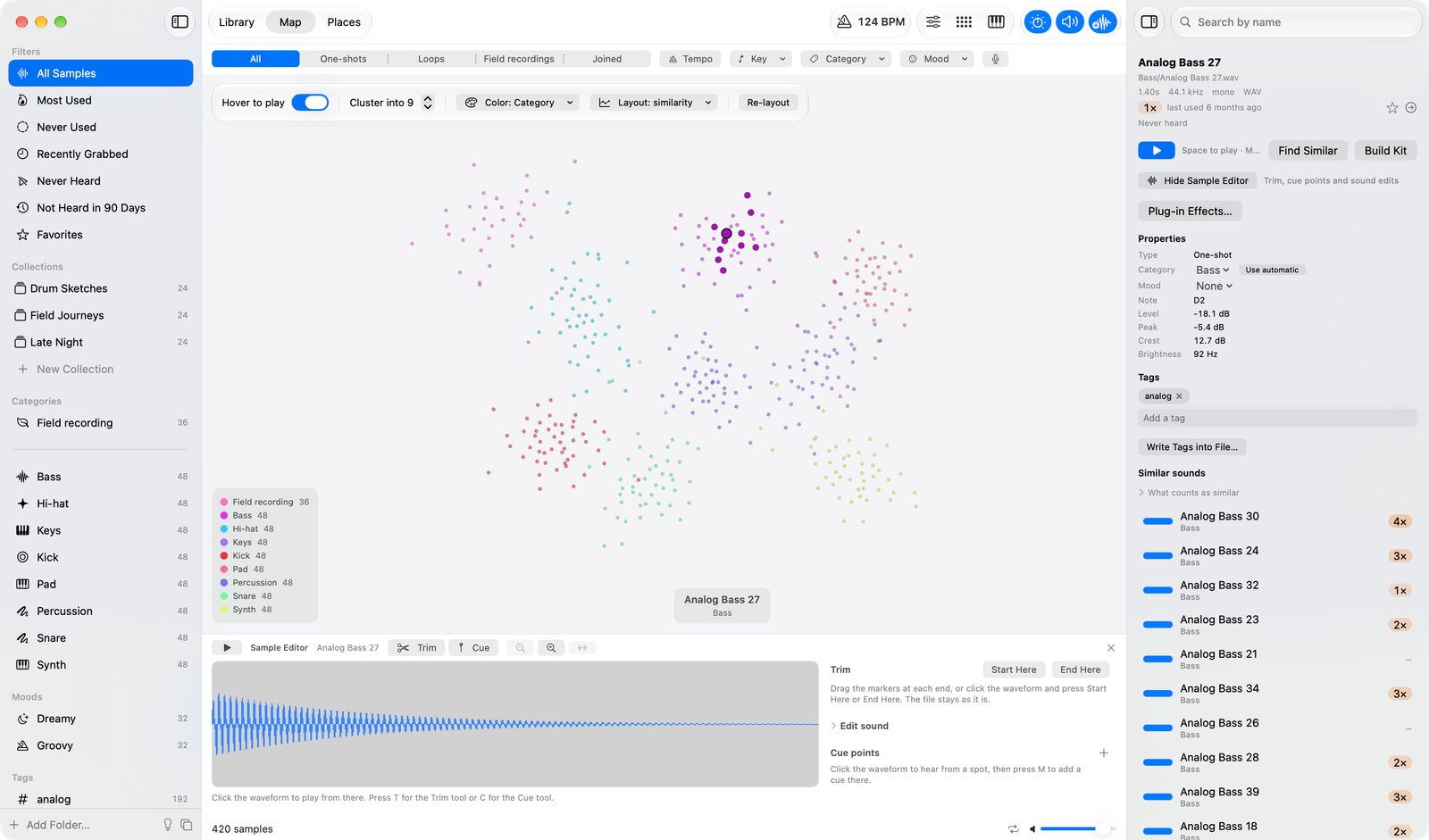
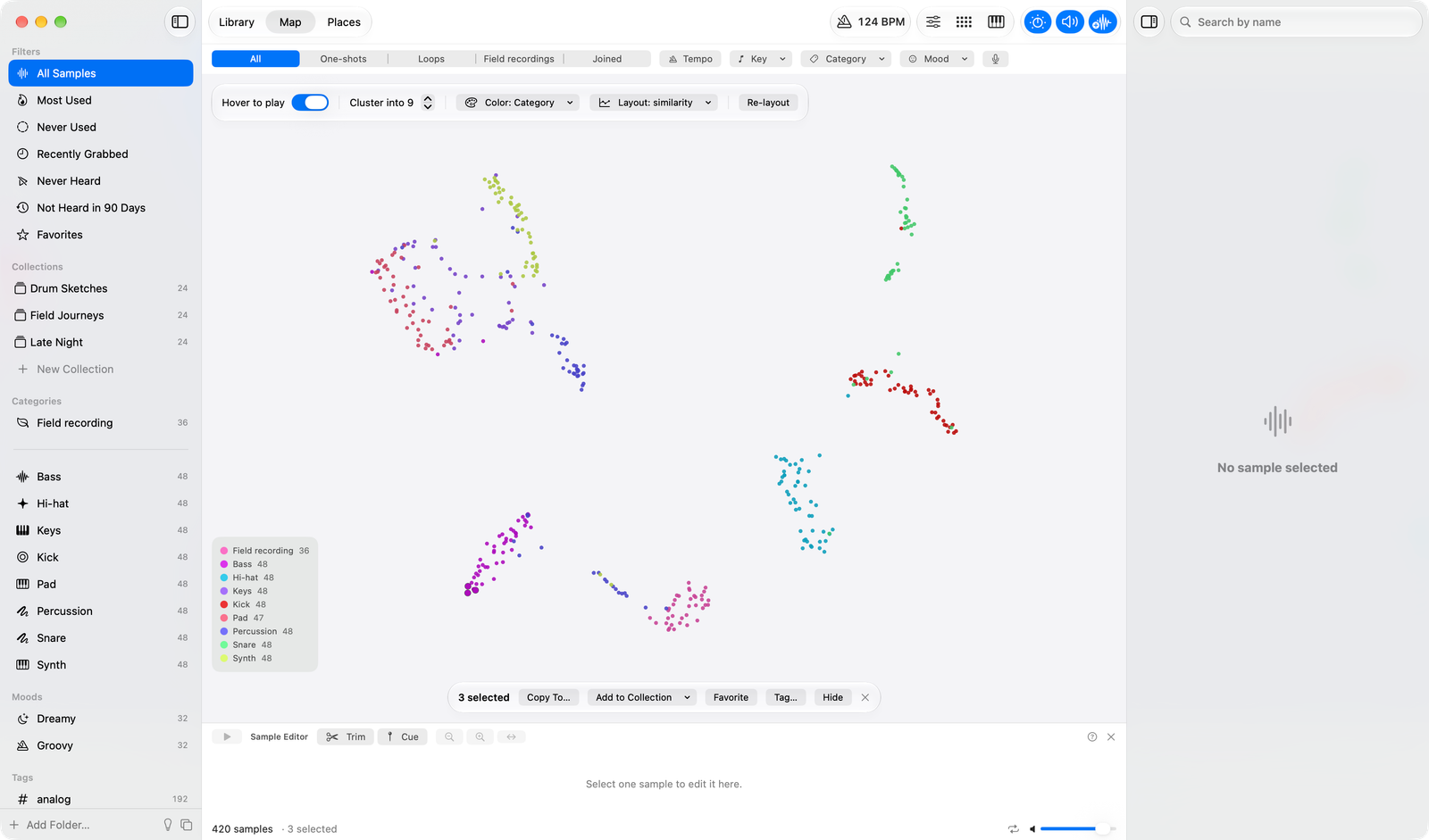
Color the dots by category, loop or one-shot, how often you used them, tempo, loudness or brightness, or lay the map out by any two measured properties instead. Shift-drag a lasso around dots to send them to a collection, your favorites, a tag or Hidden.
Categories and moods
Every sample is sorted into one of 39 categories: musical ones (kick, snare, rimshot, cowbell, pad, vocal and more), sounds of the world (birds, water, rain, wind, speech, traffic, machinery and more) and Field recording for long files. Change a sample's category whenever the guess is wrong.
Nine moods (Aggressive, Rebellious, Powerful, Epic, Dark, Dreamy, Happy, Uplifting, Groovy) are judged against your own library: a sound gets a mood when it stands out for it, and most one-shots have none. Combine moods in the filter bar. Set your own in a sample's properties, or for a whole selection with Set Mood in the right-click menu; yours replace the automatic ones until you choose Use automatic.
Measured properties
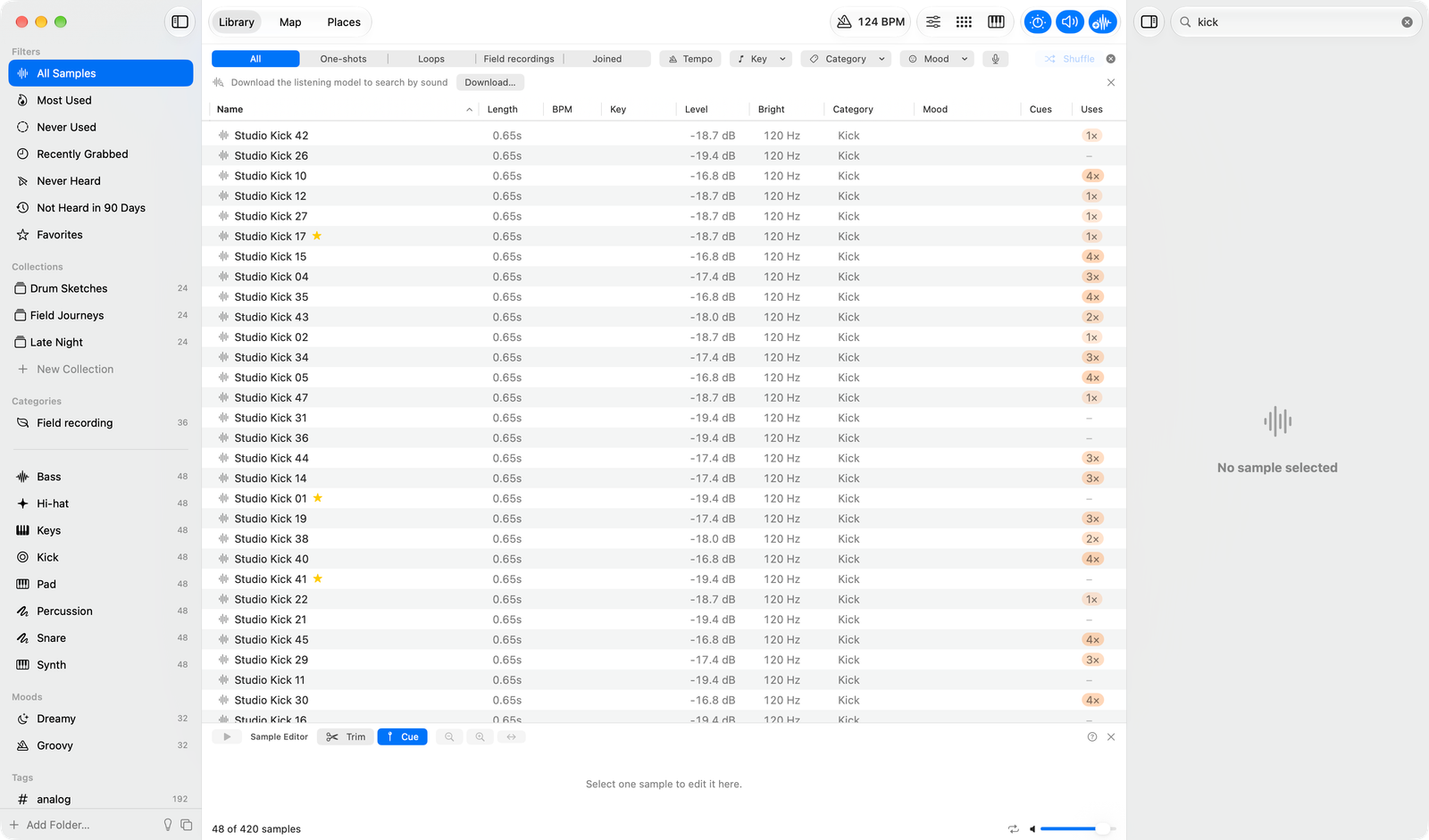
Loudness, brightness, tempo (for loops), pitch or key, and loop or one-shot are measured for every sample. They are sortable columns and filters above the list and map. Correct a loop's tempo in the inspector.
Searching the files themselves
The search box (⌘F) finds samples by name, by your tags, and by what a WAV file says about itself: its title, description, keywords, category, creator and library, read from the file's own metadata, and the Universal Category System name when the file is named that way. A purchased library's keywords are searchable at once; Use Keywords as Tags turns them into tags of your own. Escape leaves the box and keeps the words and the results; Escape again clears the search.
Browsing
- Shuffle (⌘R) puts the list in a random order, so browsing doesn't always start with the same samples. Sorting by a column, or ✕ next to the button, goes back.
- Ideas (the lightbulb) has two tabs. Nearby lists sounds you never used that sit next to the ones you use most. Rediscover lists up to six sounds you have never heard, a different pick each refresh, and up to six you have not heard in 90 days, oldest first. Show in Library opens the matching list in the sidebar.
- The Uses column and the Most used, Never used and Recently grabbed filters show which samples you keep dragging out.
- The Heard and Last Heard columns count each time you hear a sound, and the Never Heard and Not Heard in 90 Days lists in the sidebar gather sounds worth hearing again. A sound counts once it has sounded for a second, or half its length when that is shorter, so a preview you stop early does not count; a loop pass or a drum-machine step does not add another.
- Categories come from the sound, and a folder or file name can decide them: a file in a "Kicks" folder, or named "Conga 01", is filed that way. Set Category overrides the folder, the name and the analysis, and survives a rename or a move.
- The Places tab is about field recordings: it shows them with their places whatever the Library's type filter is, and offers only the Category and Mood filters there.
- Project tempo and key in the toolbar make loops preview stretched to the tempo and tonal sounds transposed to the key. Only previews change; files you drag out are untouched.
When the list is empty it says why, such as a search with no results or filters that match nothing, and offers the way back: Clear Search, Clear Filters or Show All Samples. A type filter that hides everything also says how many sounds each type would bring, and a count switches to that type without losing the search.