Squid Salmple
Plug in a USB drive with an ALM022 folder and Arkidome takes it as one for the
ALM Squid Salmple. There is nothing to set up: the Squid features appear
while it is plugged in and go away with it. Arkidome is not made by or affiliated with ALM / Busy Circuits.
For what every device gets, see Hardware.
What the module needs
| Sample format | 16-bit, 44.1 kHz, mono WAV, up to 11 seconds |
| Banks | 8 channels each, up to 99 banks in a set, up to 16 named sets |
| Pool | Folders of loose samples, up to 256 in each folder |
| Cue sets | Up to 64 in one file, for joined files |
| Names | Up to 24 letters, digits, spaces, - and _ for a sample; 8 for a bank or a set |
| Stick | FAT32, with an ALM022 folder |
Arkidome makes every sample fit these limits when it sends.
Browse the drive
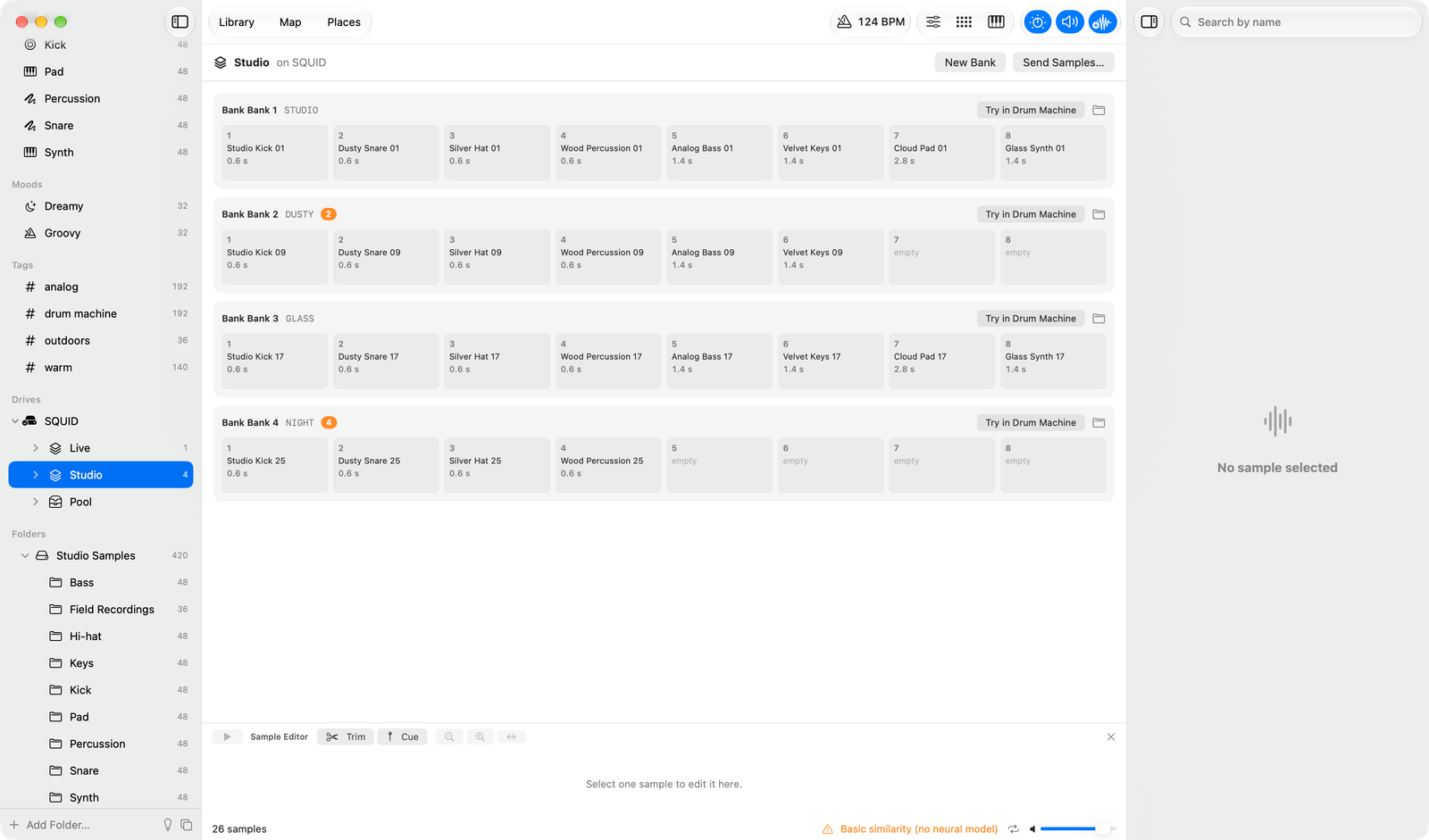
The drive appears in the sidebar with its sets, banks and Pool. Banks show their eight channels to hear, drag out or try in the drum machine. Manage sets and banks as you would folders in Finder: right-click to rename, duplicate, move to another set, reveal or move to the Trash. Samples on the drive are never added to your library.
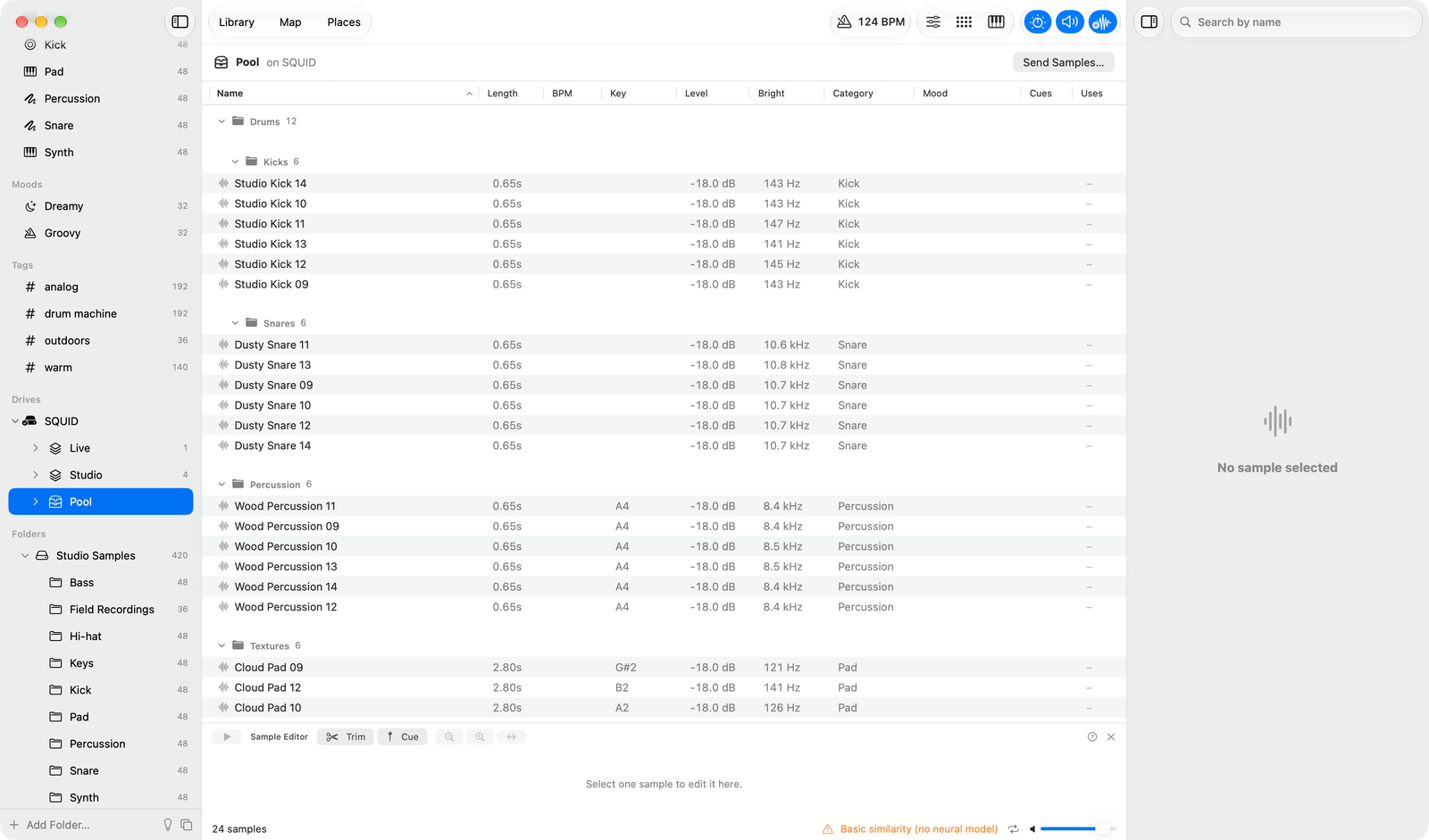
The Pool lists its folders and how many samples each holds. Pick a folder to see just its samples, or right-click one to send samples there, reveal it or move it to the Trash.
Send samples
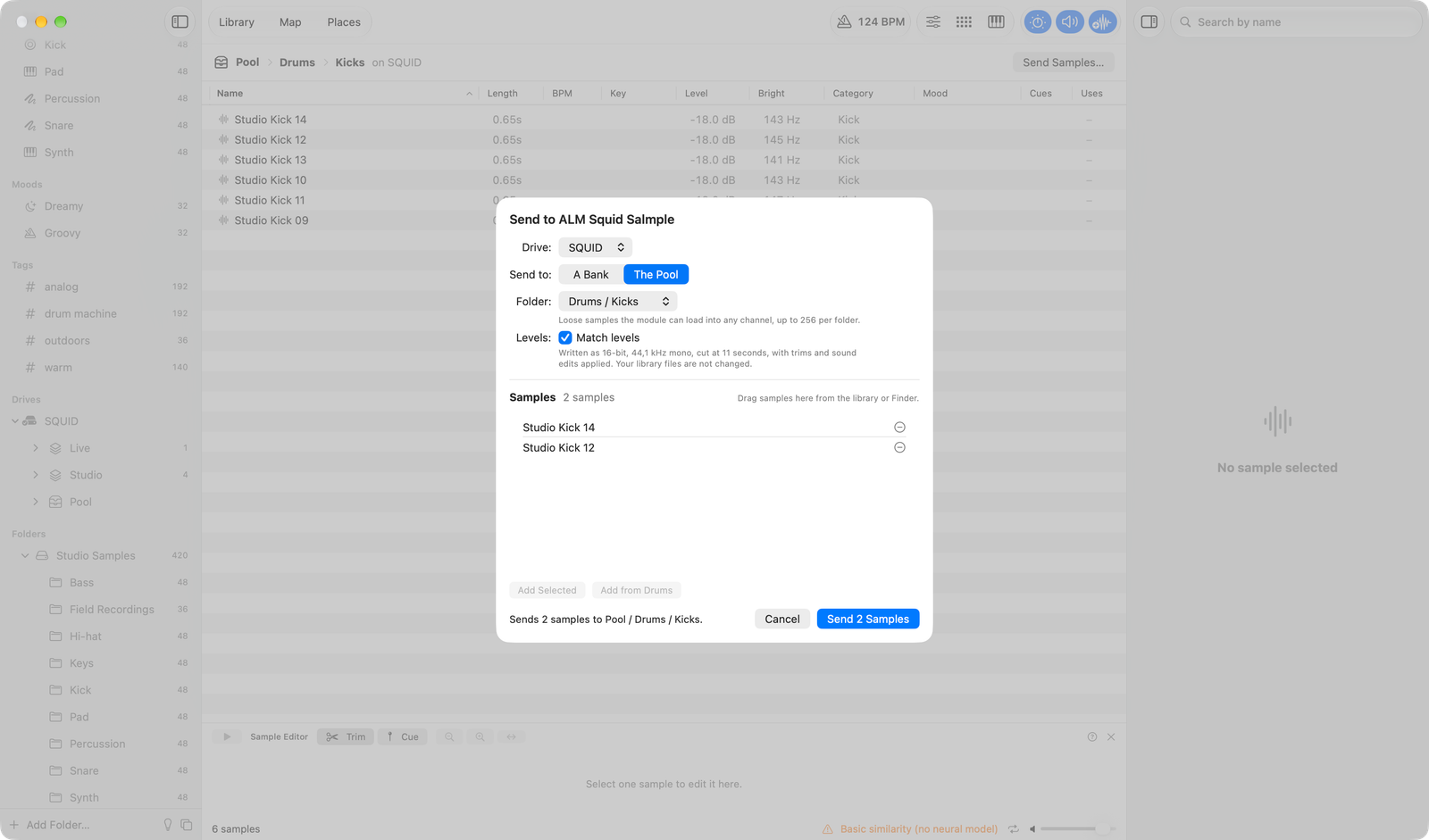
Send to Squid… (right-click menu, the drum machine, or the drive) writes up to eight samples as a bank, or any number into a Pool folder. They are converted to 16-bit 44.1 kHz mono, cut at 11 seconds and brought to the same loudness, so they play at similar volumes; the sheet's Match levels switch turns that off. Trims and sound edits are applied.
The sheet asks, top to bottom, for the drive, A Bank or The Pool, the set, how to Arrange the samples and the bank or folder. A sentence next to Send says what it will write, or why it cannot yet.
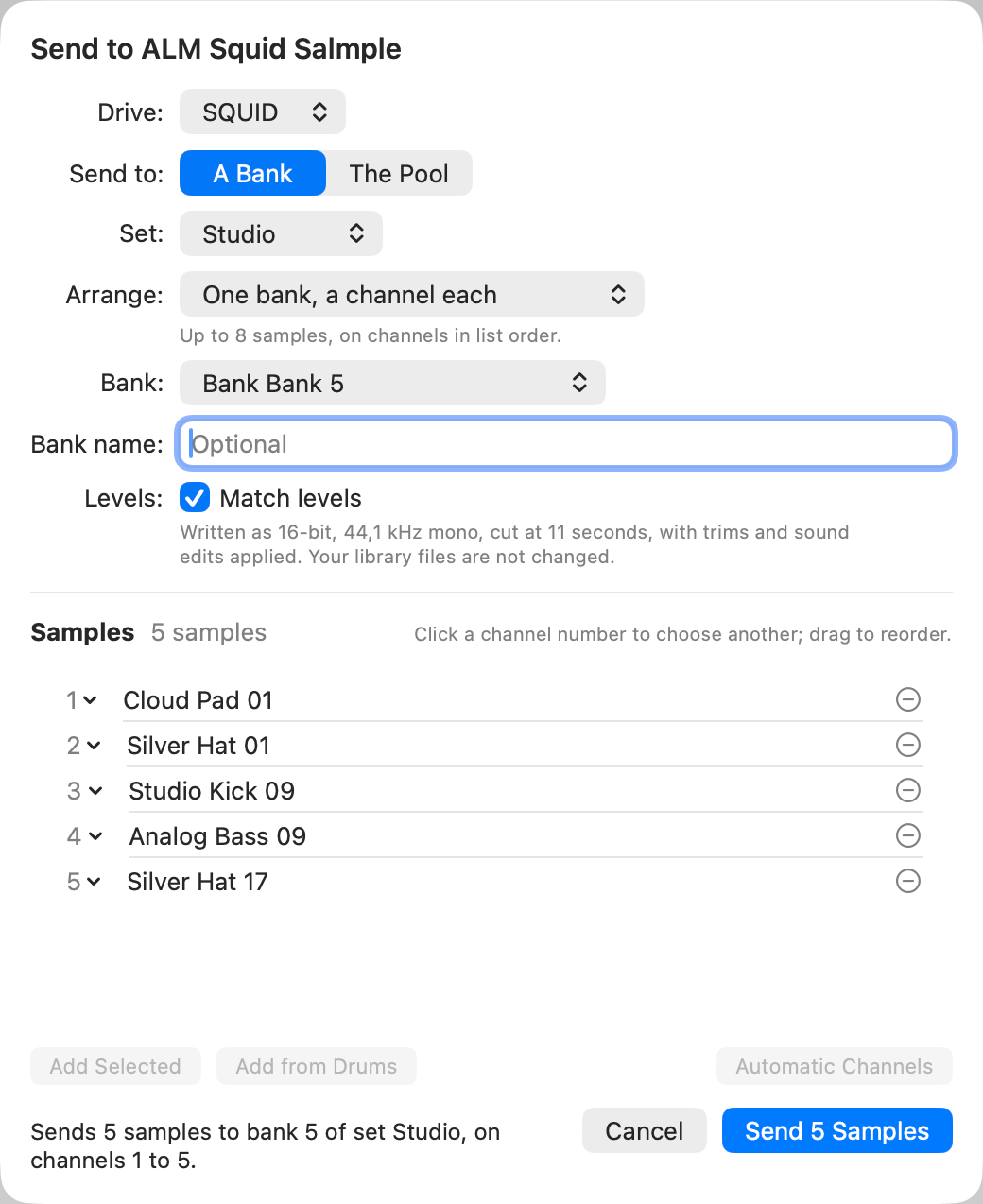
- One bank: samples fill channels 1 to 8 in the order of the list; drag rows to reorder, or pick a channel per sample. A bank already on the drive offers Add to its free channels or Replace it (the old bank goes to the Trash).
- Same channel of following banks: four snares on channel 2 become channel 2 of banks 1 to 4.
- Joined, one file per bank: the samples are joined into as few files as possible, each with cue markers the module turns into cue sets.
Nothing is overwritten silently. A channel that already holds a sample is shown in orange or red. An old sample is only replaced once the new file is written and checked, and if anything fails the old ones are put back. Each file keeps its category, so the drum machine finds the right parts for a bank you read back. Names are kept exactly as you type them; an orange note says when the module may show one cut.
To fill the Pool instead, choose The Pool and pick a folder, or type a name with / to make one inside another.
Set each sample's Squid settings
The Squid keeps level, attack, decay, pitch, speed, filter, loop and more for every sample inside the sample's WAV file. Select a sample (or several) and open Squid Settings in the inspector to set them before you send. The section shows while a Squid drive is connected; with no drive, tick ALM Squid Salmple under Settings > Devices to keep it in the inspector. Each setting has the module's own range and a button that puts it back to the default; with several samples chosen, a setting they disagree on shows Mixed until you change it, which sets it for all of them, in one undo step.
Arkidome saves what you change in your library, never in your sample, and writes it into the copy that goes to a bank channel. A sample you did not touch is sent exactly as before. Samples sent to the Pool or joined into a file keep the module's defaults, because they have no channel yet. The Send sheet says how many samples carry settings.
Select a sample on a Squid stick to see the settings its file holds, as the module saved them. They are only read; if a file has none, or has some this app cannot read, a sentence says so and the file is left alone. Not tried on a real module yet: check a sent bank on the hardware.
Send a collection
Right-click a collection and choose Send to Squid Salmple…. A collection with sub-collections becomes a set, with a bank for each sub-collection. A collection without them becomes a Pool folder, split into numbered folders past 256 samples.
Join samples for cue sets
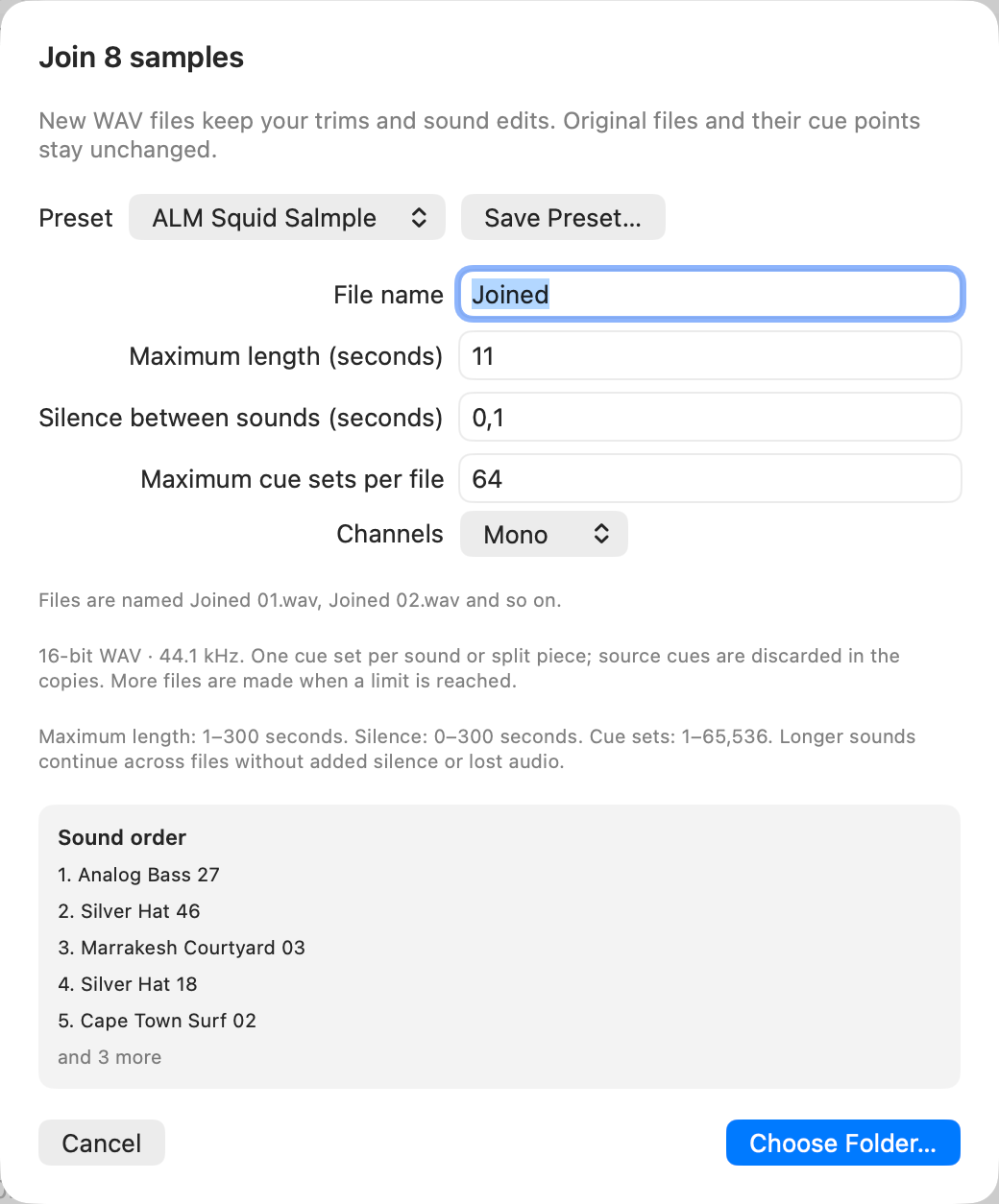
Join Samples… (⌥⌘J) glues sounds into WAV files with a marker at the start of each one, which the module turns into cue sets. Its ALM Squid Salmple preset uses mono, 11 seconds and 64 cue sets.
Normalize a drive
Right-click the drive and choose Normalize All Samples… to bring everything already on it to the same loudness. Only the sound inside each WAV file is rewritten; its category and the rest of the file are kept.